Toolbar in remote connection.

FullScreen
Toggle between fullscreen and windowed mode. After entering fullscreen mode, you can press Win+Z (default shortcut) or use the small arrow at the top center to bring up the toolbar.
Screens
This button will only appear when the controlled device has multiple monitors, and its function is to switch between them.
Original
Toggle between Original(1:1 pixel) mode and Adaptive(scaling) mode.
Original(1:1): Displays the remote screen at its original resolution. If the resolution of the remote screen is larger than your local screen, scrollbars will appear to navigate. No scaling is applied, ensuring that every pixel on the remote screen corresponds to one pixel on your local screen.
Adaptive: Scales the remote screen to fit within the dimensions of your local screen, adjusting the size to avoid scrollbars. This mode may result in slight visual quality adjustments due to scaling.
ScreenShot
Capture the current screen and save it as a PNG file.
Record
Record a video and save it as an MP4 file.
ShortCut
Some function key combinations (e.g., restart, shutdown, etc.).
Privacy
The privacy screen feature is designed to protect your privacy during a remote control session. When enabled, the screen of the remote computer is covered with a secure image, preventing anyone nearby from viewing the screen content. Additionally, input on the remote computer is disabled to ensure uninterrupted control. This feature is especially useful when working with sensitive information or in public settings, providing an added layer of security to your operations.
More
Includes features such as virtual monitor, bandwidth, resolution, and other important settings.
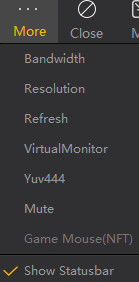
Bandwidth
You can choose to let our program automatically select the transmission bandwidth or specify a bandwidth manually.
Resolution
You can switch the resolution of the controlled device's monitor here.
Refresh
You can switch the refresh rate of the controlled device's monitor here.
VirtualMonitor
You can create virtual monitors on the controlled device, which will be removed when the remote connection ends.
Yuv444
You can enable YUV444 mode for sharper and clearer text display. However, it is not suitable for gaming scenarios and may be slower on some graphics cards due to GPU limitations.
Mute
You can mute the sound transmitted from the controlled device.
Game Mouse(NFT)
If this mode is not enabled, some games may fail to recognize keyboard input. This feature is tied to NFTs and requires purchasing our NFT to use.
Show Statusbar
Enabling this option will display real-time connection data, including FPS, RTT, and packet loss, in the bottom-right corner.