In Streaming, click setting icon to call out setting dialog.
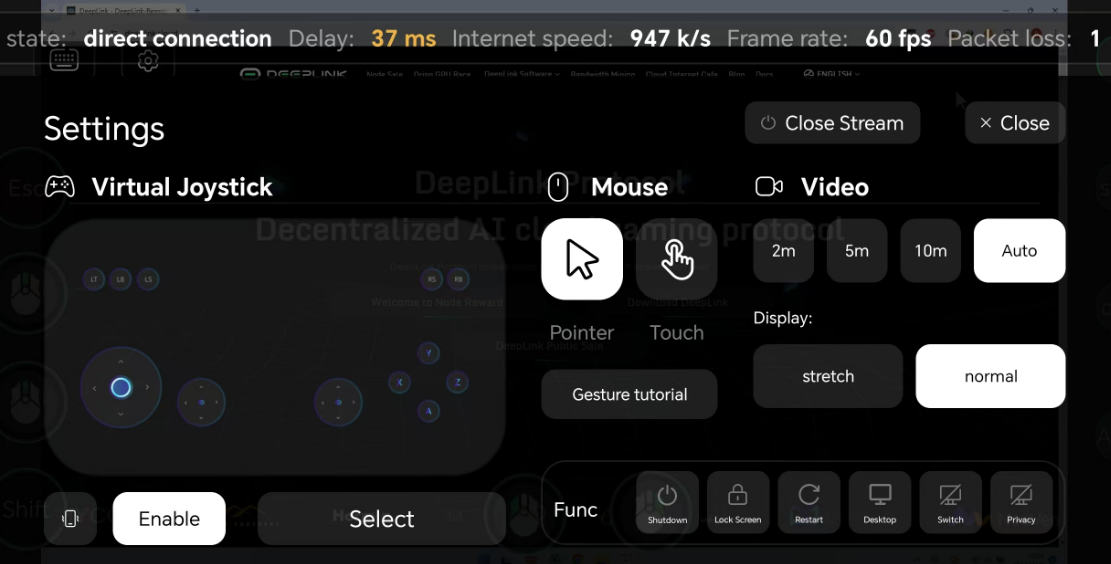
Top Status BAR
The top status bar displays the current status. Users should pay attention to Delay and Packet Loss, as these represent the current network quality. High values for either may cause stuttering.
virtual button settings
The main settings are divided into three sections. The leftmost section is for virtual button settings.
Vibration Button
If enabled, operations will provide vibration feedback.
virtual button Enabled
The enabled button activates the previously configured set of virtual buttons. You can set up multiple butt on combinations and use different sets in various scenarios.
virtual button Select
Select will open the edit selection interface. This section is relatively complex, so you will be redirected to the Virtual Buttons Help.
Mouse settings
The second section is for Mouse settings.
Mouse Pointer Mode
Dragging on the screen moves the pointer, instead of directly interacting with the target by touch.
Offers more precision, ideal for tasks requiring fine control, such as clicking small areas or dragging items.
Mouse Touch Mode(default)
Touching the screen directly corresponds to clicking the target on the remote desktop.
Provides a natural and fast way to interact, suitable for intuitive actions like swiping or simple taps.
Gesture
Gestures allow users to perform complex actions, like right-click or drag, without additional buttons or controls, making the interface cleaner and easier to use.
Here are some common gestures used in remote control software, helping users perform mouse-like operations on touch devices:
1. Single Tap
- How to Perform: Tap the screen once with a finger.
- Function: Simulates a left mouse click.
- Use Case: Selecting files, clicking buttons, or simple interactions.
2. Double Tap
- How to Perform: Quickly tap the screen twice with a finger.
- Function: Simulates a right mouse click (customizable in some software).
- Use Case: Opening context menus or files.
3. Long Press
- How to Perform: Press and hold the screen with a finger for 1-2 seconds.
- Function: Simulates a right mouse click or drag starting point.
- Use Case: Dragging icons, opening context menus.
4. Drag
- How to Perform: Press and hold, then move your finger across the screen.
- Function: Simulates a left mouse drag.
- Use Case: Moving windows, adjusting sliders, or selecting text.
5. Pinch to Zoom
- How to Perform: Use two fingers to pinch together or spread apart on the screen.
- Function: Zoom in or out on the content.
- Use Case: Viewing high-resolution content or resizing windows.
6. Two-Finger Scroll
- How to Perform: Place two fingers on the screen and move them in any direction.
- Function: Scrolls the content up, down, left, or right.
- Use Case: Navigating through pages or large documents.
Video
Bitrate
You can choose to let our program automatically select the transmission bandwidth or specif y a bandwidth manually.
Display
There are two types of scaling:
- Proportional Scaling:Keeps the original aspect ratio.May result in black borders to fill the unused space.
- Non-Proportional Scaling:Fills the entire screen without black borders.However, it may cause distortion or stretching.
Function
Here are some commonly used function buttons, along with their descriptions:
Shutdown
Immediately powers off the remote computer and ends the current session.Suitable for scenarios where the computer is no longer needed or when tasks are complete.
Lock Screen (Win+L)
Quickly locks the remote computer screen to protect data privacy.Ideal for situations where you temporarily step away but want to keep your current work state.
Restart Computer
Restarts the remote computer to resolve system issues or apply updates.Useful for addressing system freezes, loading new settings, or completing updates.
Switch Host Display
Switches between different monitors of the host computer during a remote session.Suitable for multi-monitor setups, making it easier to navigate and view additional screens.
Enable Privacy Screen
Activates the privacy screen feature to restrict the visibility of the remote computer's screen.Useful for preventing others from viewing sensitive information on the screen.
If the privacy screen is enabled or disabled, a notification window will appear.

Here you can configure the host to automatically lock the screen when the privacy screen is disabled.