DeepLink Remote Software (iOS) - User Manual
This guide will walk you through setting up your secure, decentralized remote access system using DeepLink.
Launch the Application
Locate and tap the DeepLink app icon on your iOS device's Home Screen to open it.
Set Up Your Wallet (Your Identity Hub)
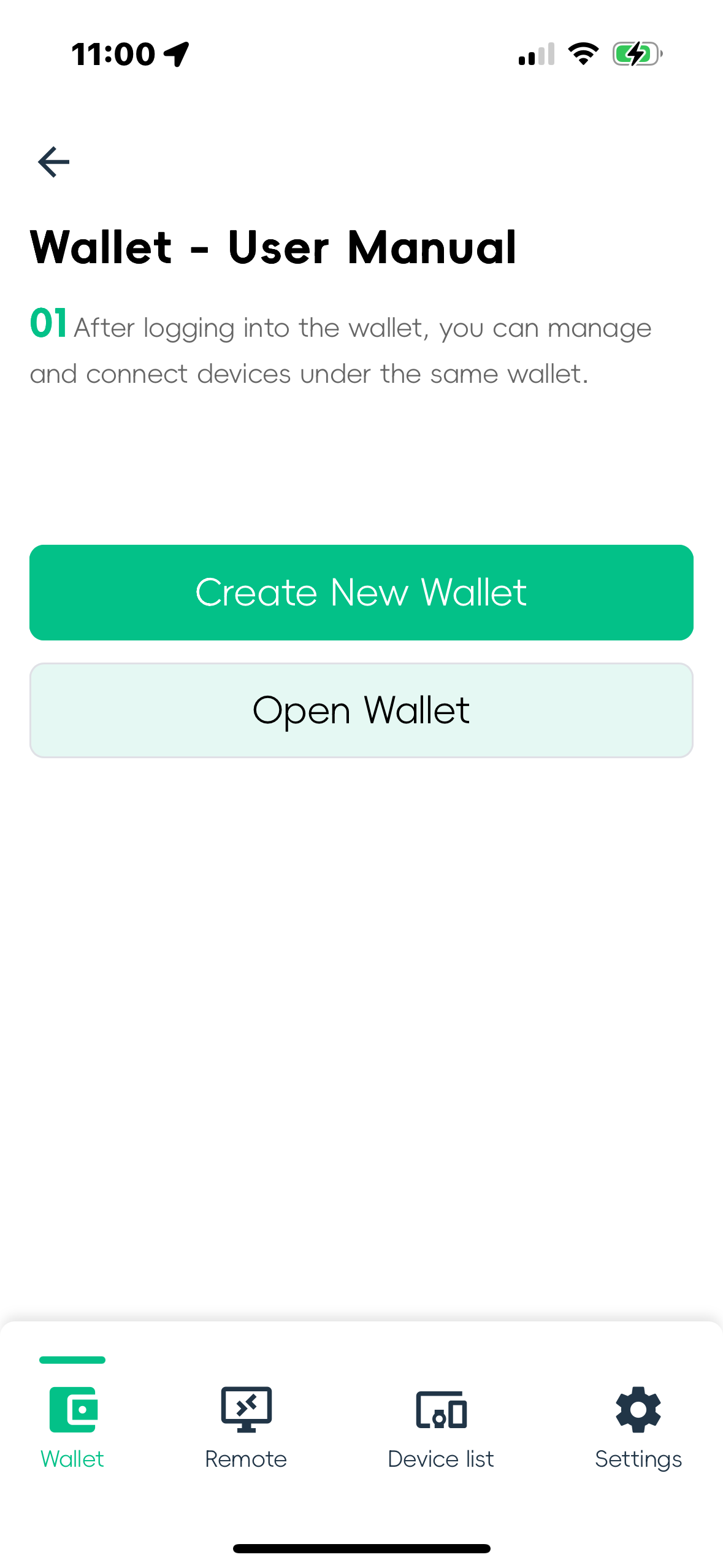
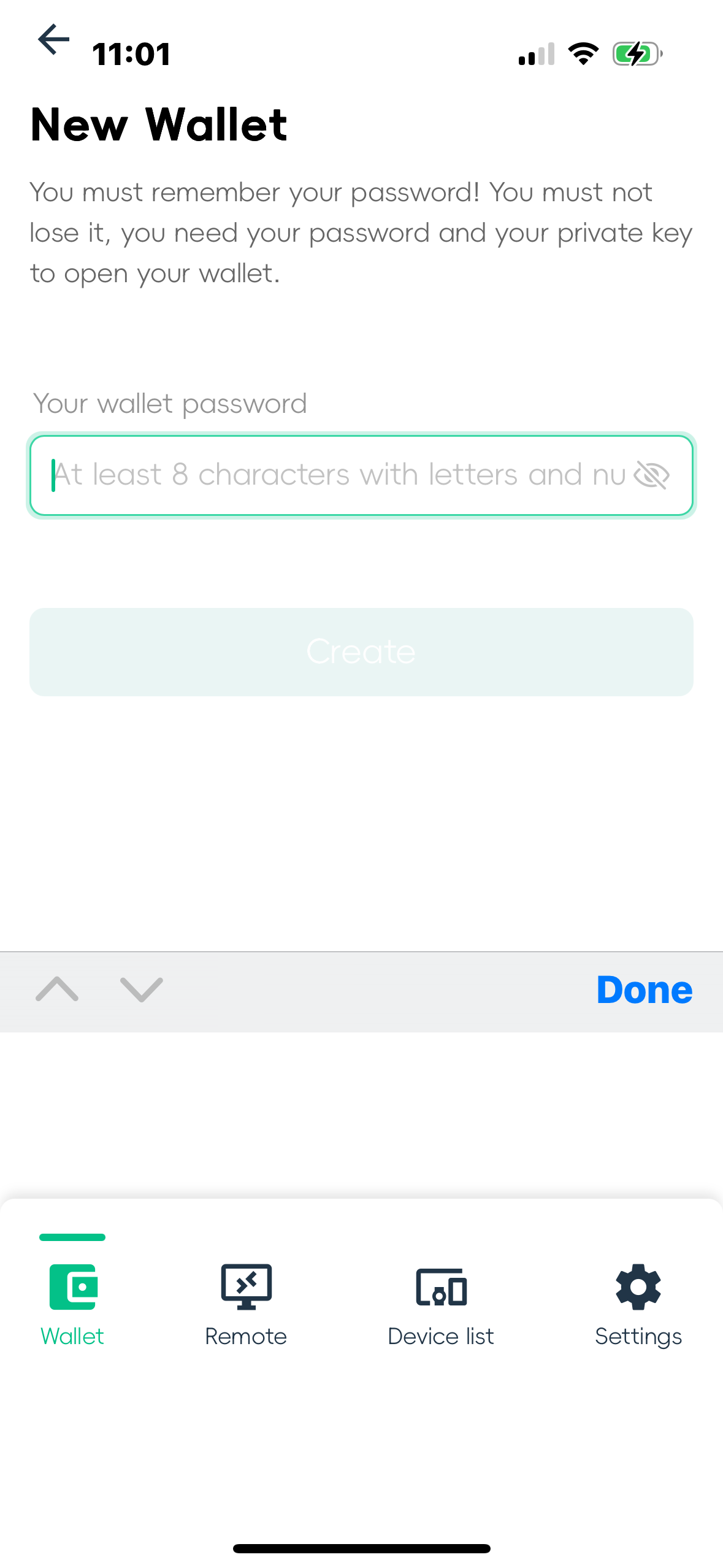
Your wallet is your unique identity. It manages cryptographic keys used to securely connect and authenticate all your devices.
- Upon first launch, you will see two options:Create New Wallet: Choose this if you are a new user.Restore Existing Wallet: Choose this to regain access to a previous wallet using your saved Privacy Key.
- Follow the on-screen instructions to complete the setup. You will be asked to create a strong Wallet Password. This password is used to encrypt and unlock the wallet on this specific device for daily use.
SECURE YOUR PRIVACY KEY (MOST IMPORTANT STEP)
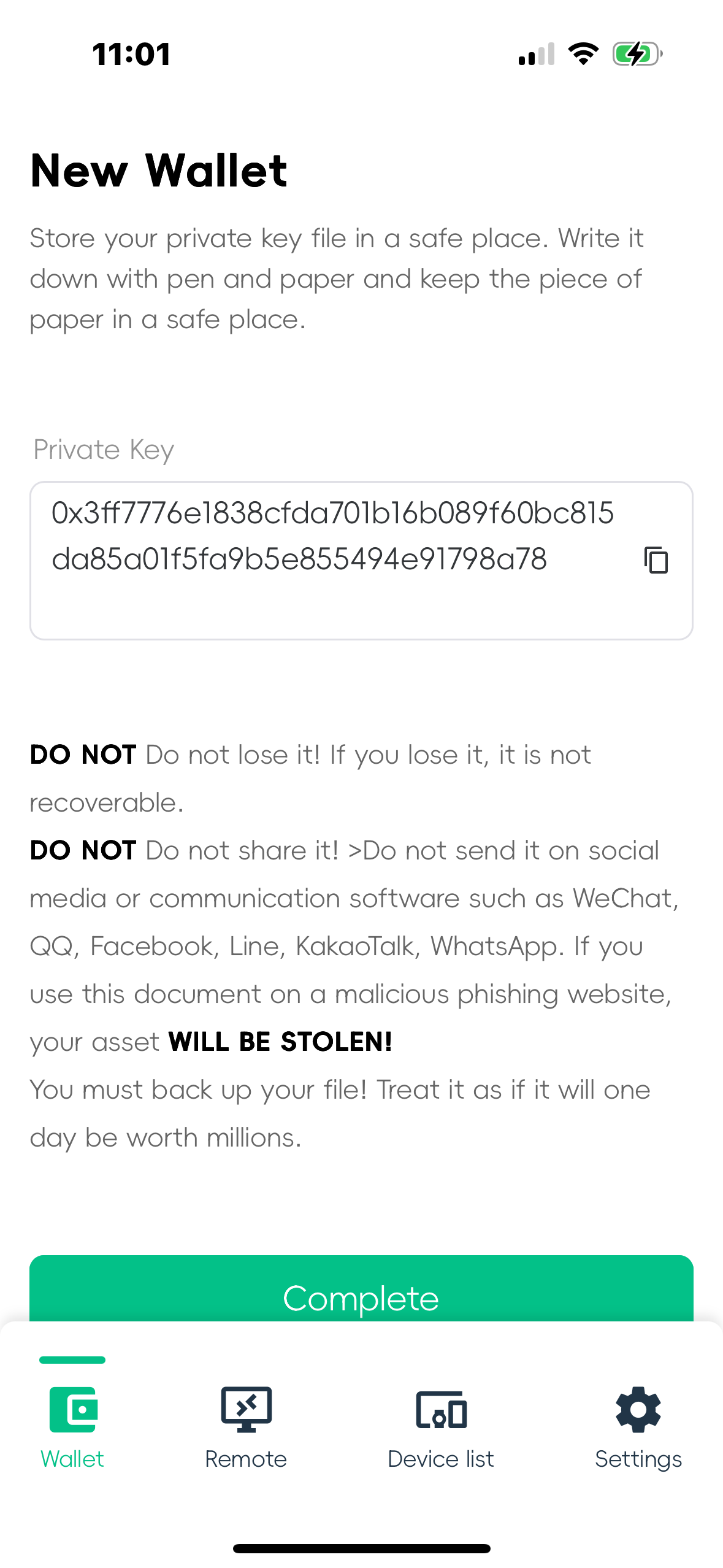
- After creating your wallet, the app will display your Privacy Key. This is a master private key, often shown as a long string of characters.
- Why it's Critical: The entire security model of DeepLink is built upon this key.Device connections and all communication are secured using public-private key encryption derived from this single key.It is the sole method for restoring your wallet and all device links on a new device.
- ⚠️ Warning:Anyone with this key can control your wallet and connect to your devices.DeepLink servers cannot recover or reset this key.If lost, you will permanently lose access to your wallet and the ability to manage your connected devices.
- How to Save It:Write it down on paper and store it in a secure, physical location.Avoid storing it in digital formats (e.g., text files, unencrypted notes, emails).The app will ask you to confirm you have saved it correctly before proceeding.
Remote Tab: Connect via Host Credentials
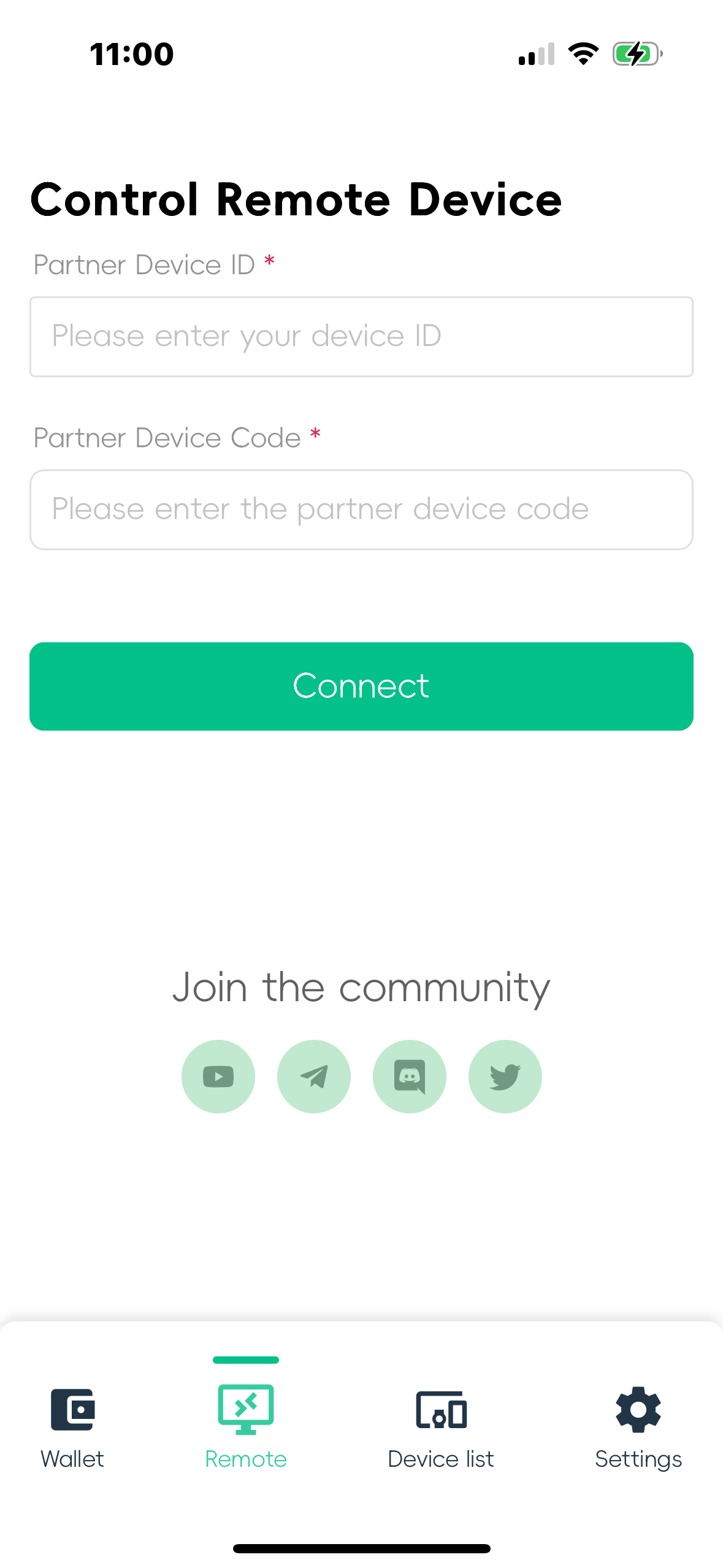
This method is for connecting to a host (e.g., a Windows PC) that is already running DeepLink and is configured to accept connections.
- Navigate to the Remote tab.
- In the provided fields, enter the:Remote ID: The unique identifier of the host machine.Password: The connection password set on the host machine.
- Tap the Connect button.
- Key Security Point: This connection is authenticated directly between your device and the host. The DeepLink server only facilitates the introduction; it does not know or store the host's password, ensuring your privacy.
Device Lists Tab: Connect via Wallet Trust
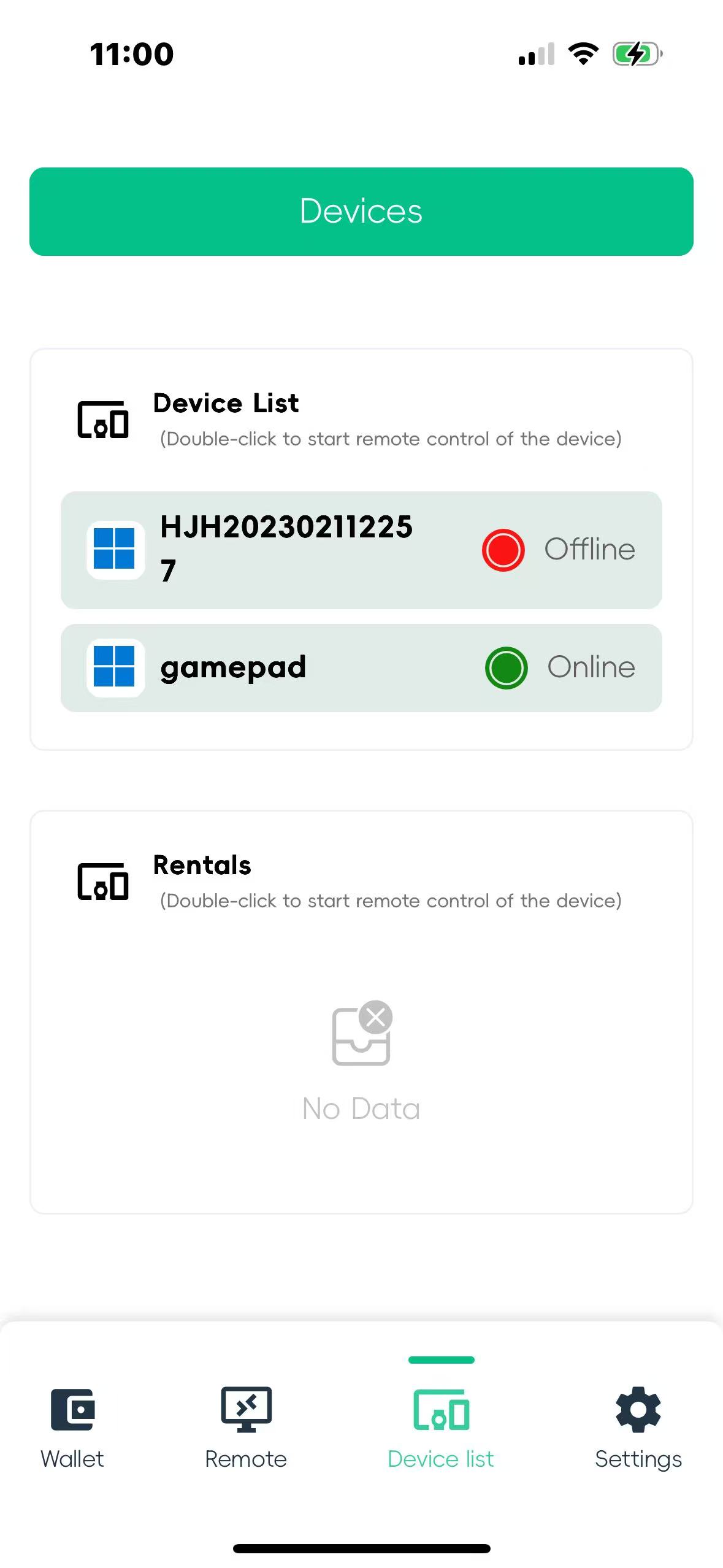
This tab shows all devices that have been added to or logged into with the same wallet. This is the most seamless and secure connection method.
- Navigate to the Device Lists tab.
- You will see a list of all your trusted devices (e.g., your home PC, office laptop).
- To connect to a device from the list, simply select it.
- You will be prompted to enter your Wallet Password (the daily-use password for this iOS device) to authorize the connection.
- Key Security Point: This connection is authenticated using the public-private key encryption from your wallet. The password you enter decrypts your local private key to prove your identity to the remote device. No credentials are sent to or dependent on DeepLink's servers.
Fluent Remote Access Over the Internet
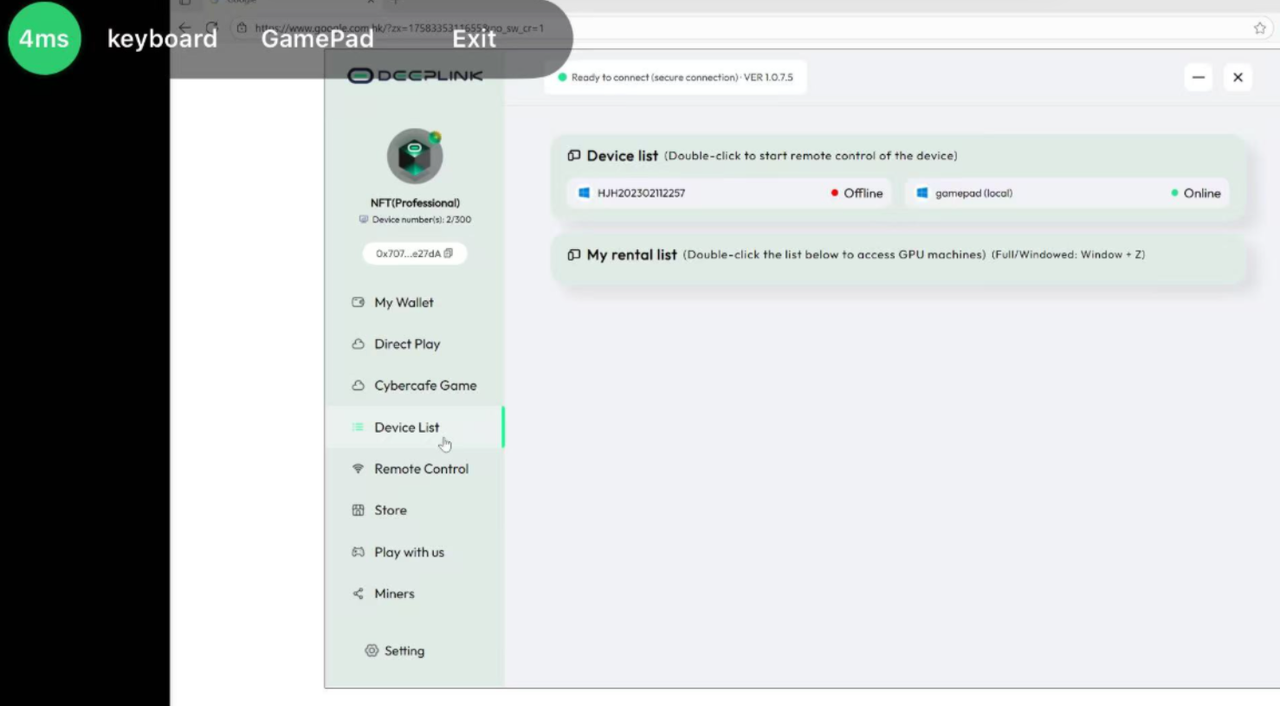
Once you successfully connect to your Windows host using either method above, you will be greeted with a live view of its desktop.
- For Work: Access your professional software, files, and full computing power from your iPhone or iPad, as if you were sitting right in front of your office or home computer.
- For Entertainment: Stream videos, play music, or access games installed on your Windows machine directly from your iOS device. DeepLink is optimized to provide a smooth, low-latency streaming experience over a standard internet connection.
You can interact with the remote desktop using touch gestures (tap to click, drag to move the mouse, pinch to zoom) for full control of your Windows host.
Summary of Security:
- Your Privacy Key is your master recovery seed. Guard it physically.
- Your Wallet Password is your daily device access key.
- Host Credentials (ID/Password) are for one-off connections and are managed by you.
- All connections are peer-to-peer encrypted, and authentication is handled directly between devices.